Staff Manual
Your KDS Screen, Explained
Everything you need to use MyODS on the line. No IT experience required.
Logging In
MyODS uses a single sign-on system. These logins are provided by TTA and can only be used on 1 computer at a time. If you have trouble logging in or not sure which account is for which screen reach out to help@tta.club or call 813-249-0303 for help.
Logging Into Your KDS Screen
Use this flow for the kitchen display screens on the line.
Open the app
Type your club's MyODS address into Chrome. Bookmark it so you don't have to type it every shift.
Enter your credentials
You will see a login page. Enter the username and password your manager provided, then press Sign In.
Choose your station
After login you will see a list of stations. Tap your station, such as Expo 1 or Prep Grill, to open your screen.
Locked out?
If you see "Access Denied" after logging in, your account may not have the correct role assigned. Reach out to TTA at help@tta.club or call 813-249-0303 to check your permissions.
Your KDS Screen
This is what you see when you open your station. Here is what each part does.
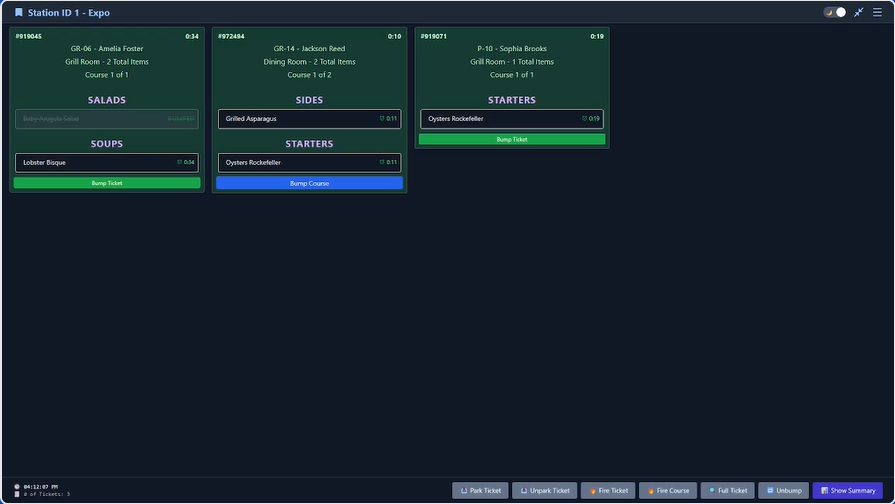
Top Bar
Shows your station name (Station ID 1 - Expo), light/dark mode toggle, full screen toggle, and hamburger menu to expand into the settings and bump all tickets buttons. Always visible at the top of the screen.
Ticket Cards
Each card is one order. They show information like the ticket number, guest name, where the order came from, total items, and current course. New orders appear automatically with no page refresh needed.
Bottom Action Bar
Runs along the bottom of the screen with quick actions: Park Ticket, Unpark Ticket, Fire Course, Fire Ticket, Full Ticket, Unbump, and Show Summary. Buttons may appear and disappear based on the selected settings.
Reading a Ticket
Every ticket card tells you everything about one order at a glance.
Chit Number
Top-left of the card. This is the POS assigned order number.
Timer
Top-right. Counts up from when the order arrived. You may see a red timer under the normal timer when and item is fired.
Header Section
All information about the order and the customer. Shows above the item list and message panel. Information such as table number, server name, order location, total number of item, current course, and cover count.
Item List
Each line is one item with its quantity. Items with a strikethrough have already been bumped individually.
Ticket Colors
Ticket colors indicate timing status: green = on time, yellow = at risk, red = late.
Fired Item
A red FIRED badge means that item has been fired.
What You Can Do
The core actions you will use on every shift.
Bumping a Single Item
If one item is ready but others are still cooking, mark just that item done without bumping the whole ticket.
Tap the item line on the card
The item gets a strikethrough. The rest of the ticket stays active on screen.
Bump the full ticket when everything is ready
Once all items are done, press the green BUMP button to complete the order.
Bumping a Full Ticket
When all the food for an order is ready and plated, bump the ticket. This removes it from your screen and marks the order complete across the whole system.
Make sure all items are ready
Confirm every item on the ticket is prepared before bumping.
Press the green BUMP button
The button is at the bottom-right of the card. The card disappears and the order is marked complete.
Bumped by mistake? Use the unbump button on the bottom bar to recall a list of recently bumped orders. For items simply double tap the item again to unbump it.
Moving a Ticket
You can reposition tickets on the board by dragging them from the header area.
Grab the ticket by the header
Touch and hold the header section at the top of the ticket card to start moving it.
Drag it to the spot you want
Move the ticket into the position that makes the most sense for your station workflow, then release it to drop it there.
Moving Between Pages
When a screen fills with tickets, the next set can move onto another page. You can switch pages and move tickets between them when needed.
Watch for the page indicator
You will know there are more tickets when another page becomes available and the page controls appear on the right side of the screen.
Move to the page you need
Swipe left and right to move between pages. If you are dragging a ticket, pull it toward the bottom of the page and use the page area on the right to place it on another page.
Adjusting Your Settings
Tap the Settings gear icon in the top bar to open the settings panel. Changes you make here only affect your station. After changing settings, refresh the screen so the new settings activate. Here are a few of the most useful things your team will adjust most often.
Appearance
Adjust UI scale, item grouping, modifier display, timing details, and ticket color thresholds so the board fits your station and pace.
Coursing
Control how courses fire, hide, separate, and color themselves so the kitchen sees the right items at the right time.
Sync & Status
Choose what stays local, what follows Expo, and what syncs across all stations for firing, bumping, parking, and page behavior.
Printing & Sounds
Set printers, bump-print behavior, alert sounds, durations, and custom uploads so your station communicates clearly.
Need the full reference?
For a comprehensive feature reference, please open the Settings Manual.
The dedicated Settings Manual breaks down every tab and setting with its title, explanation, where to find it, and default value.
Open Settings ManualOther Screens
Depending on your role, you may also use one of these screens.
Expo Screen
Final check before food goes to the table. Sees all orders from all stations.
Prep Screen
Shows order with settings focused to enable your cooks.
Queue Screen
Server focused status board showing where every active order stands across all stations.
Mobile Queue
Touch-friendly order status screen for servers checking from the floor.
Ready Screen
Displays completed orders waiting for pickup or delivery. Often shown on a lobby TV. Great for grab and go areas in your club.
Mobile Queue Picking Your Section
When you open the Mobile Queue, you will see a list of Servers. Pick your name from the list or runner to see all orders. If you select your name there is a toggleable runner view to see all orders for when you have time to run other servers tables.
Ready Screen What It Shows
Up to three columns: Received, In Progress, and Completed. Completed orders disappear automatically after a set time so the board stays clean.
Common Questions
Quick answers to things that come up on the line.
Quick Reference
| I want to... | How to do it |
|---|---|
| Mark one item complete | Double tap the item line on the card to give it a strikethrough |
| Mark an order complete | Double tap header section of a ticket or press the green BUMP button on the ticket card |
| Fire the next course | Press Fire on the bottom bar, then Course, and then tap the course you'd like to fire. |
| Hold a ticket temporarily | Use the park icon. Use Unpark in the footer to get it back |
| Print a ticket | Tap the printer icon on the ticket card |
| Change sound alerts | Settings gear, then Sound Notifications tab |
| Switch dark or light mode | Settings gear, then Appearance tab |
| See all active orders | Navigate to the Queue Screen |
| Switch to another station | Go back to Screen Selection and pick a different card |
| Log out | Logout button in the top-right corner of any screen |
Need More Help?
Contact the TTA team directly for support, demos, or product information.
Sales
sales@tta.club
Request a demo, quote, or product information.
Help
help@tta.club
Get help with the Ticket Board Service.
Phone: +1-800-474-2582